
Unlock Seamless Communication: A Step-by-Step Guide to Zoom Subtitles Translation
Published on November 29, 2025
Have you ever been in a crucial international meeting? Did you find yourself nodding awkwardly, completely lost in the conversation due to a language barrier?
Missing key details is frustrating. It's a major challenge in our globalized world. Fortunately, starting from August 2024, Zoom officially launched a discussion thread about its real-time translated caption feature, where users shared the specific steps for hosts to enable this function. (At first, people didn't know much about this feature: https://www.reddit.com/r/Zoom/comments/1ffxml3/closed_caption_live_translate_to_other_language/)
This guide explains everything you need to know about Zoom subtitles translation. We provide a step-by-step tutorial for enabling and configuring Zoom's native feature on your account.
We will also explore advanced third-party AI tools. These tools offer even higher accuracy and more language options. By the end, you will be equipped to master Zoom subtitles translation. This will ensure your next multilingual meeting is productive, inclusive, and crystal clear.

1.What Are Zoom Real-time Translated Captions?
Before diving into the setup, let's define what Zoom subtitles translation is. It is a powerful feature that processes spoken language during a meeting. It then transcribes and translates it into on-screen text in your chosen language.
This guide explains everything you need to know about Zoom subtitles translation. We provide a step-by-step tutorial for enabling and configuring Zoom's native feature on your account.
1.1 How It Works: From Spoken Word to Multilingual Subtitles
At its core, this feature uses an advanced, automated process. First, when someone speaks, Automatic Speech Recognition (ASR) technology captures the audio. It then converts the audio into text in the original language.
Next, a powerful AI subtitle translator engine takes this text and translates it into many target languages. This process happens almost instantly. It delivers a seamless zoom subtitles translation experience.
1.2 The Key Difference from Standard Captions
Many users confuse this feature with Zoom's standard caption tool. Standard captions are a transcription tool. For example, if someone speaks English, the screen shows English text.
However, Zoom subtitles translation adds the critical step of translation. With this feature enabled, your colleagues in Japan can see Japanese subtitles. At the same time, the team in France can read along in French. Both translations come from the same English speaker.

1.3 Why Your Team Needs This Feature
This feature offers enormous business value. According to McKinsey, diverse teams are 35% more likely to achieve financial returns above their industry medians. Effective Zoom subtitles translation is key to unlocking this potential. It boosts efficiency for global teams and fosters inclusivity.
This ensures every employee can fully participate. Learning how to enable Zoom translation is a vital step. Investing in a reliable subtitle translator solution is an investment in your business's future.

2.Step-by-Step Guide: How to Enable Zoom Translation
Now, let's cover the core operational steps. Enabling Zoom subtitles translation is not complicated. However, it involves actions from three distinct roles: the account admin, the meeting host, and the participants. This guide breaks down each step to ensure a smooth setup.
It will prepare you for a successful Zoom subtitles translation in your next meeting. We will answer all key questions about enabling Zoom translation. This will empower you to master this feature.
2.1 Preparation: Check Your Zoom Account and Plan
Before changing any settings, your first and most critical step is to confirm something. Does your Zoom subscription plan support the Zoom subtitles translation feature?
By default, this functionality is not in all plans. Usually, you need a Zoom One Business Plus, Zoom One Enterprise, or a similar Education plan to access it.
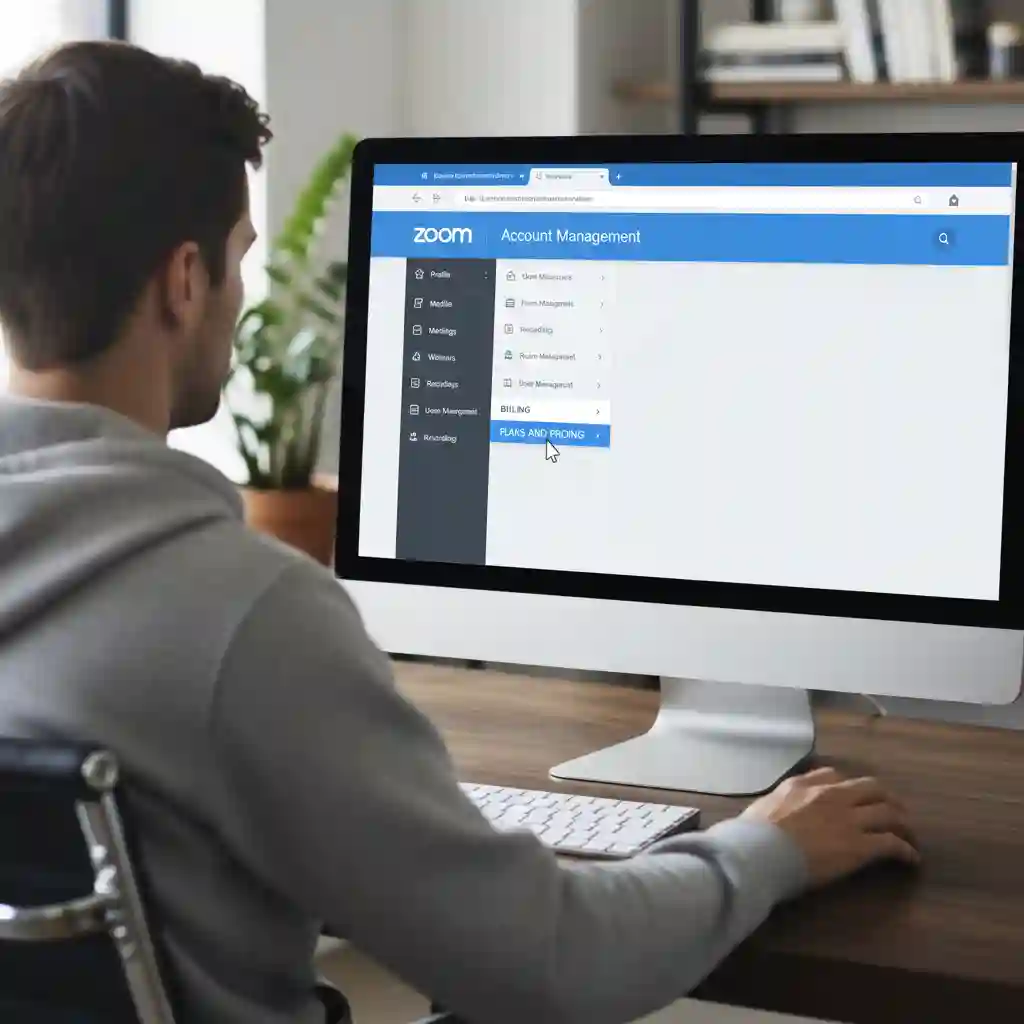
To check this, log in to your Zoom web portal. Go to the "Billing" or "Plan Management" page to review your current subscription details.
If your plan doesn't support it, you might need to upgrade or buy an add-on Zoom meeting translation service plan. Your account must meet the required qualifications before you can enable Zoom subtitle translation.
If you don't have time to listen to the recorded meeting or don't have a membership, you can record the audio and then try this method.An efficient "workaround" workflow: record Zoom -> auto-transcribe -> ChatGPT summarize -> Gamma generate PPT. (Turn every Zoom call into a polished presentation in minutes)
2.2 For Admins: Enabling Translated Captions at the Account Level
For enterprise users, an account administrator must enable the Zoom subtitles translation feature globally. This step is crucial because it unlocks permission for all users in the organisation. If the administrator skips this step, meeting hosts will not find the option in their meetings.
2.3 For Hosts: Starting and Managing Translation in a Meeting
Once the admin has granted permission, control shifts to the meeting host. For every meeting that requires cross-language communication, the host must start the Zoom subtitles translation feature. The process is intuitive and gives the host full control over the meeting's language environment.
As the host, follow these steps after the meeting starts. In the meeting toolbar at the bottom of the window, find and click the "Show Captions" or "Captions" button. A menu will appear with configuration options. First, you must set the "Spoken Language," which is the primary language for the speakers.
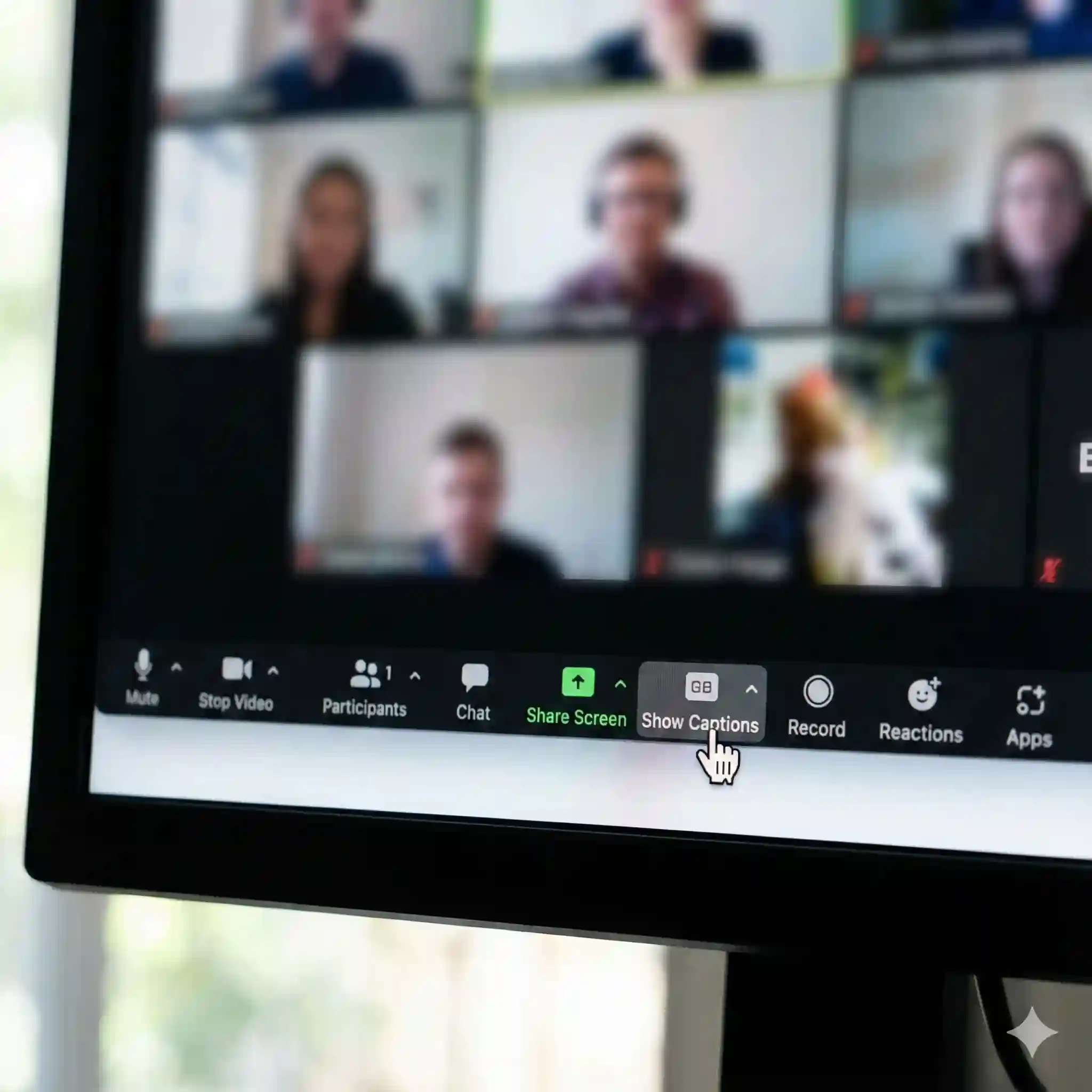
After that, captions will appear on participants' screens. This shows that Zoom subtitles translation has launched. The AI subtitle translator is now providing high-quality subtitles for Zoom.
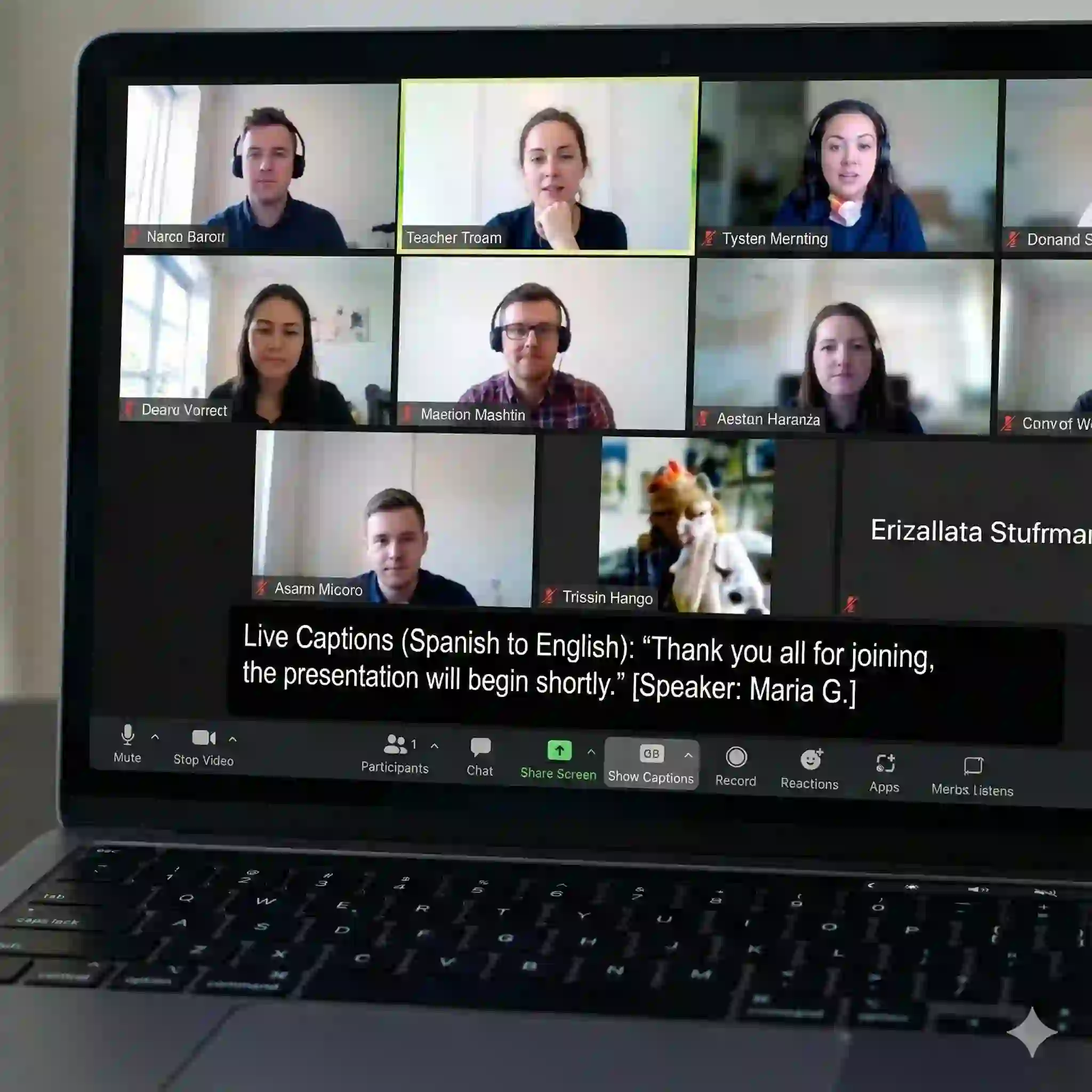
The host's simple actions activate the powerful Zoom subtitles translation engine. This ensures all attendees get real-time translation from that moment on.
Here's another concise tutorial that teaches you step by step how to enable the translated caption feature from the Zoom web backend settings. (How to Enable Real-Time Translation in Zoom)
2.4 For Participants: Choosing Your Subtitle Language
Finally, let's look at the participant's experience. A key benefit of Zoom subtitles translation is that each participant can select their own caption language. This personalised setting makes the meeting truly inclusive.
When the host enables captions, you will see an upward arrow appear next to the "Show Captions" button in your toolbar. Click this arrow to open a menu. Find the "Translate to" option in this menu. From the dropdown list, select the language you want, such as "Spanish" or "German."
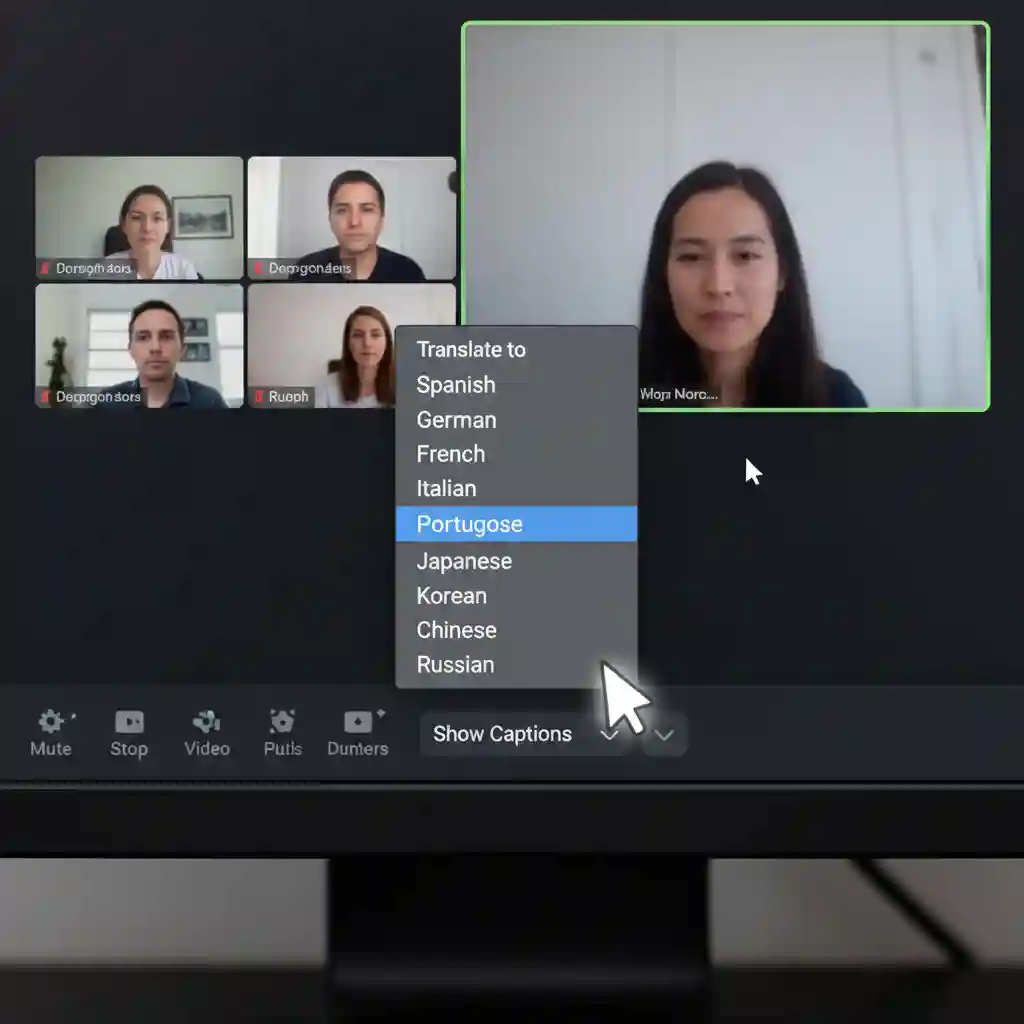
Once you select a language, the subtitles on your screen switch from the source language to your chosen language. A robust subtitle translator powers this personalised Zoom subtitles translation experience. It shows the true magic of this technology. It also ensures every attendee receives the information clearly.
Now I'll introduce the techniques. A clever "hacker" trick that teaches you how to use the free Microsoft Translator to generate captions and share your screen with Zoom participants. (Microsoft translator and zoom)
This quick tutorial shows how to find the hidden caption enable button in the Zoom toolbar and select a language. (Exciting News! The Inaugural CPT (Zoom Captions Tip))
3.When Native Features Aren't Enough: Top Zoom Meeting Translation Services & AI Subtitle Tools
Zoom's built-in translation feature provides an excellent starting point for everyday cross-language communication. In high-stakes professional scenarios, however, you may find that its native capabilities have limitations.
Many people have complained about zoom's inaccurate translation issues. (Zoom real-time-speech-to-translated-text is awful)
Therefore, I recommend some other tools as alternatives.
This is when understanding more professional third-party solutions becomes crucial. These tools can greatly enhance your Zoom subtitles translation experience. They ensure accuracy and professionalism in your communication and take your Zoom subtitles translation to the next level.
3.1 Limitations of Native Zoom Subtitles Translation
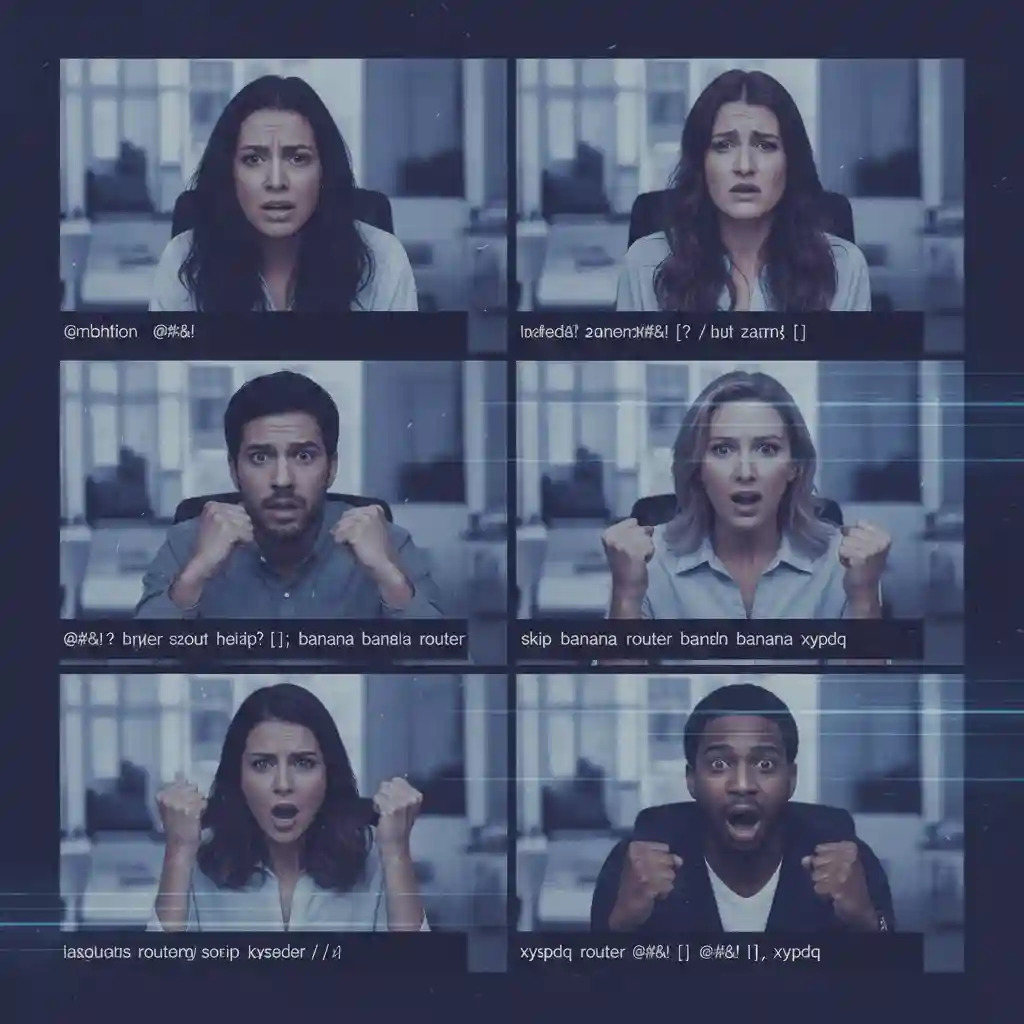
While convenient, Zoom's native feature is not flawless. A primary limitation of the native Zoom subtitles translation is its limited number of supported languages, which cover little more than a dozen. This may not be enough for businesses that communicate with a wider global audience.
Furthermore, its accuracy can decline when handling industry-specific jargon or complex sentence structures. This impacts the quality of the Zoom subtitles translation. Finally, it lacks features like custom vocabularies for important meetings. It also does not provide human-verified, post-meeting transcripts.
3.2 Exploring Powerful Third-Party AI Subtitle Translators
When native functionality falls short, professional third-party AI subtitle translator tools come to the rescue. Many excellent options are available, including Wordly, Interprecify, and Felo Subtitles. All of them integrate seamlessly with Zoom. These services use more advanced AI to transcribe, translate, and subtitle.
This often delivers higher accuracy and broader language support. For example, Wordly supports real-time translation for over 25 languages. In contrast, Interprecify can even offer live human interpreters. This provides dual-layered assurance for top-tier Zoom subtitle translation. For complex meeting scenarios, these tools offer a more reliable way to translate Zoom subtitles.
3.3 Feature Comparison: Native Zoom vs. Professional Services
To understand the differences, we can compare them across several key dimensions. In language support, a professional Zoom meeting translation service usually supports 30+ languages. This far exceeds the native Zoom subtitles translation. Regarding accuracy, top-tier third-party services can achieve nearly 95% accuracy for professional Zoom subtitles translation.
They do this through optimised AI models and custom vocabulary features. Additionally, these services usually offer dedicated technical support and customer service. This ensures your important meetings run smoothly. In contrast, Zoom's native translation of subtitles is more of a standardised, one-size-fits-all tool.
3.4 Real-World Scenarios: When to Choose a Professional Zoom Meeting Translation Service?
The right choice depends on your specific needs. Here are two typical cases. They will help you decide when it's time to upgrade your Zoom subtitles translation toolkit.
Case Study 1: Large International Medical Conference
An online medical conference brings together top experts from around the world. The discussions involve a vast amount of complex medical terminology. In this context, any translation error could lead to serious misunderstandings.
Relying on basic Zoom subtitles translation is too risky. The necessary choice is a professional Zoom meeting translation service like Wordly. It supports custom medical glossaries and ensures the professionalism and accuracy of every Zoom subtitles translation.
Case Study 2: Multinational Corporate Board Meeting
A board meeting on future corporate strategy and sensitive financial data demands the utmost confidentiality and accuracy. The meeting will often use internal company acronyms and project codenames. A professional service can provide end-to-end encryption and a tailored vocabulary.
This delivers secure, reliable Zoom subtitle translation. This ensures that every Zoom subtitles translation is precise and secure. It also meets the highest level of corporate compliance.
3.5 Our Tool —— Ai Subtitle Translator
Our subtitle translation tool can automatically recognize and accurately translate subtitles from various video files, supporting real-time multilingual conversion. It helps video creators and audiences easily understand cross-language content. (Discover the advanced AI Subtitle Translator platform for seamless video subtitle translation)
If you don't know how to use it, we have also prepared a tutorial for you (Read the comprehensive step-by-step guide).
Whether you need to convert SRT to VTT or perform mutual conversion between other common subtitle formats, we can handle it quickly. (Use Subtitle Converter tool to transform subtitle file formats)
4.Improving Accuracy: Best Practices for Using Zoom Subtitles Translation
Even the most advanced AI tools' performance depends on the quality of their input. To maximise the potential of Zoom subtitles translation, you must follow a few simple best practices.
These tips will improve real-time translation accuracy and ensure clear communication. Mastering these methods will make your Zoom subtitles translation experience much smoother.
4.1 Optimising Audio Input is the First Step
Audio quality is the foundation of caption accuracy. Always remember the "garbage in, garbage out" principle. Use a high-quality, noise-cancelling microphone instead of relying on your laptop's built-in mic.
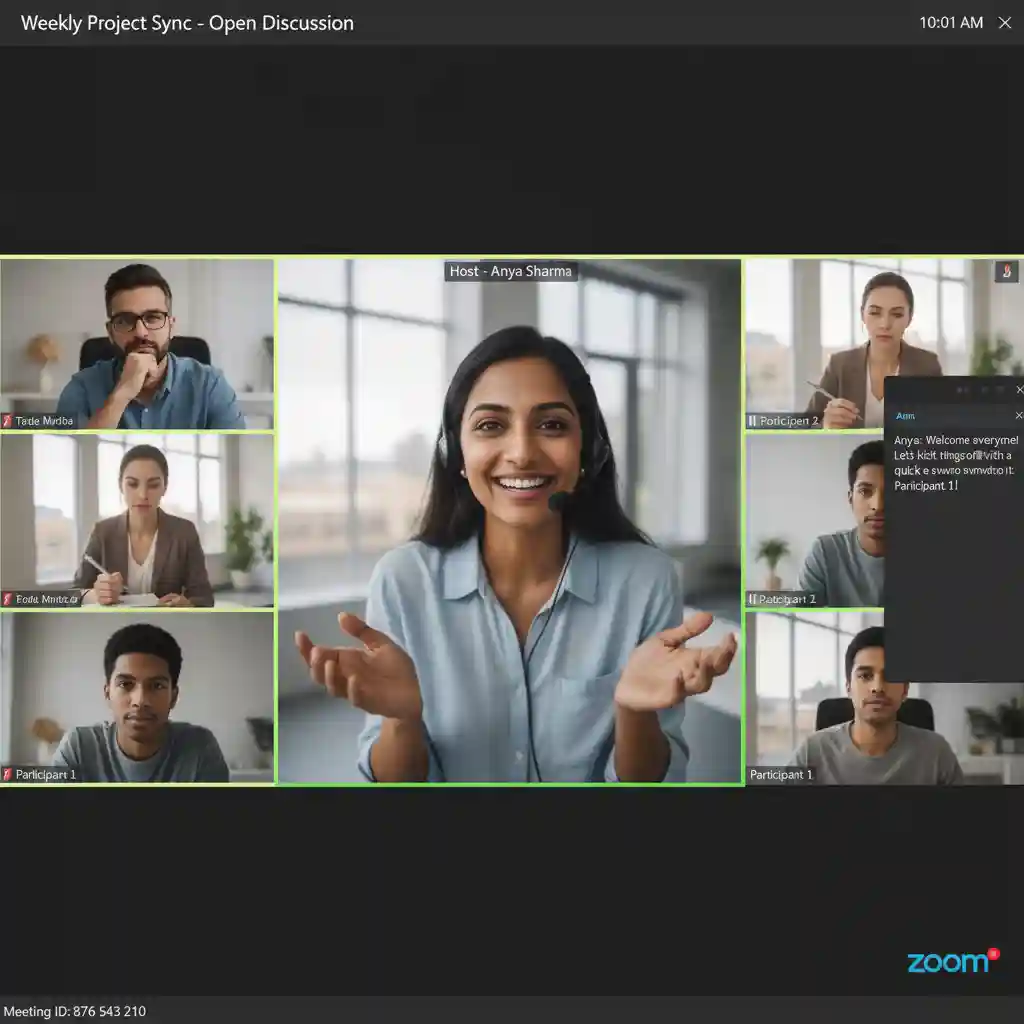
Ensure you are speaking from a quiet environment to avoid background noise. Hosts should also encourage participants to speak one at a time. This prevents overlapping audio, which is fundamental for clear subtitles for Zoom.

4.2 The Speaker's "Golden Rules"
A speaker's habits have a direct impact on the AI's recognition ability. To help the AI better translate subtitles, speakers should articulate clearly and maintain a moderate, steady pace. Avoid using too much slang, jargon, or very complex sentences. Using clear, concise language is one of the most effective ways to improve the accuracy of Zoom subtitle translation.
4.3 Managing Attendee Expectations
At the beginning of the meeting, the host can take 30 seconds to set the stage. Inform all attendees that the meeting will use AI-powered real-time translation in Zoom captions. Remind everyone that machine translation may have minor errors, especially with proper nouns.
Encourage participants to use the chat for clarification if a translation seems unclear. This simple step manages expectations and prevents miscommunication. It helps ensure a successful Zoom subtitles translation process.
4.4 Post-Meeting Use: Proofreading and Editing Transcripts
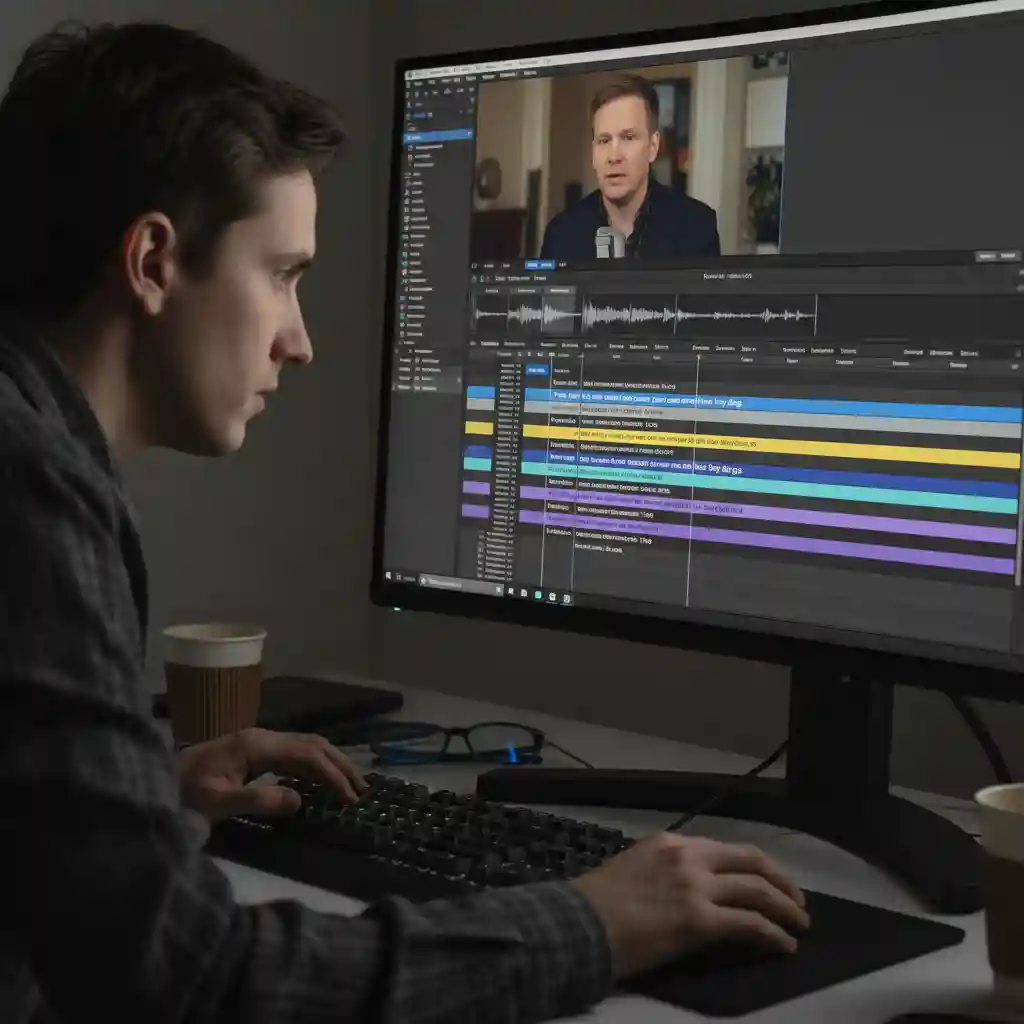
For important meetings that you need to archive or distribute, 100% accuracy is a must. Zoom allows you to save the meeting's caption file (usually in .vtt format). After the meeting, you can import this file into professional subtitle editing software for refinement.
The initial AI transcribe translate subtitles process is great for real-time needs. However, post-meeting proofreading guarantees a flawless final record. This combined approach is the best way to create a complete workflow for your zoom subtitles translation.
5.Start Your Journey to Barrier-Free Communication
In summary, Zoom subtitles translation is a transformative technology. It is reshaping global communication. For most daily meetings, Zoom's native feature provides clear and effective subtitles. This feature easily breaks down language barriers. High-stakes professional settings demand maximum accuracy. For these situations, top-tier third-party services offer the perfect upgrade.
Now is the perfect time to take action. If you're an individual user or part of a small team, log in to your Zoom account now. Follow our guide to enable the Zoom subtitle translation feature. For enterprises seeking higher accuracy and professionalism, consider trying a service like Wordly. You can see how well it can translate subtitles and how it can empower your global business.
Reference:
- Bridge the language gap and connect people with Zoom translated ...
- What is Zoom Translation and How Does It Work? - Tactiq